How to Set Up Dual Monitors Ergonomically for Maximum Productivity
Four simple steps to avoid pain and boost efficiency with your dual-screen setup
By the Furniblog Editorial Team·August 3, 2026·4 min read

Why Dual Monitor Ergonomics Matter
Since 2002, dual monitor use has surged by 70%—and for good reason. Multiple studies show that people working with two screens are up to 43% more productive than those using a single display. But there's a catch: without proper ergonomic setup, those productivity gains can quickly be eroded by lower back pain, neck strain, and eye fatigue.
If you're using dual monitors or considering adding a second screen to your workspace, following a few simple ergonomic principles will help you reap the full benefits while staying comfortable throughout your workday.
4 Simple Steps for an Ergonomic Dual Monitor Setup
Setting up your dual monitors correctly doesn't require expensive equipment or complicated adjustments. Here are four straightforward steps to create a comfortable, productive dual-screen environment:
1. Start with Proper Posture
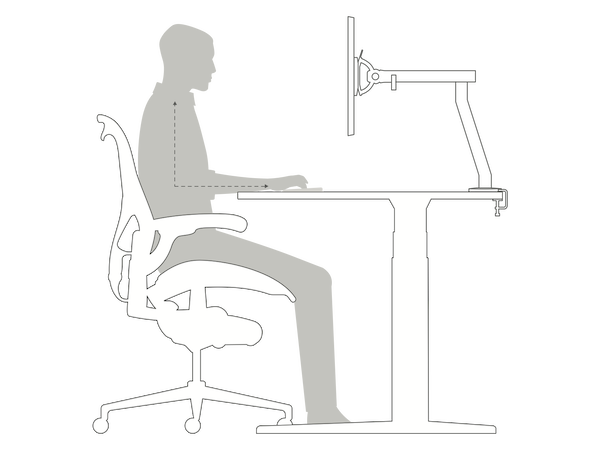
Before you adjust a single monitor, establish the foundation: your posture. Comfort begins with how you position your body, whether you're sitting or standing.
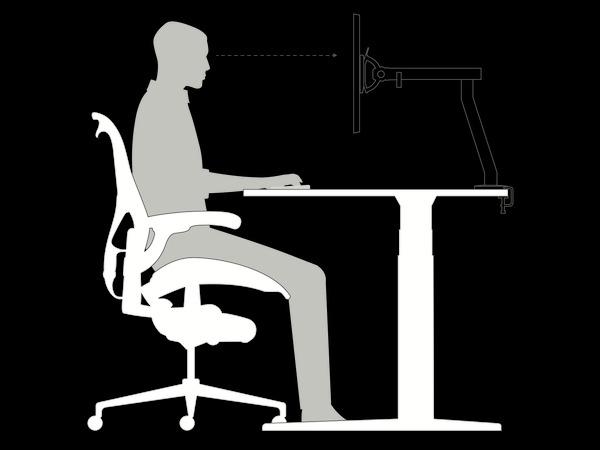
Seated posture: Press your lower back firmly against your chair's backrest, place your feet flat on the floor, and position your forearms at a 90-degree angle resting on the desk surface.
Standing posture: Keep your back straight and your forearms at a 90-degree angle to the desk.
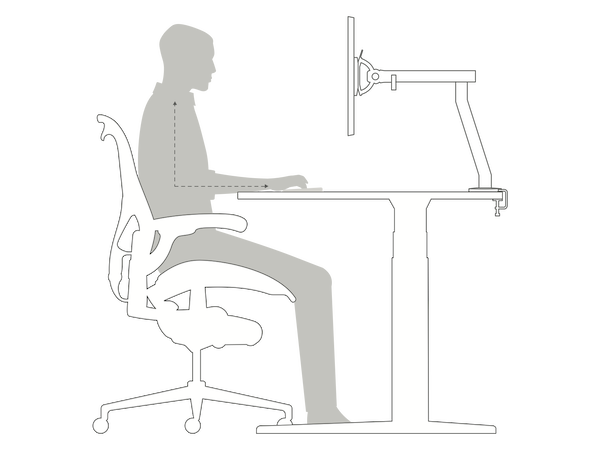
Whether you're using a traditional office chair or an ergonomic task chair like the Steelcase Gesture or Herman Miller Aeron, proper posture is your starting point.
2. Designate Your Primary Monitor
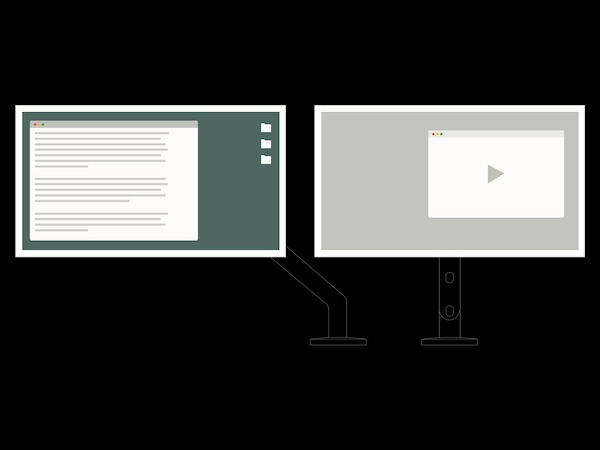
Once you've found a comfortable posture, it's time to think about screen hierarchy. In a dual monitor setup, you should designate the screen you use most frequently as your primary display.
For example, if you spend most of your time writing reports or entering data on one screen, that should be your primary monitor. Use the secondary screen for reference materials, email, video playback, or other supporting tasks.
This simple designation will guide the rest of your ergonomic adjustments.
3. Position Your Mouse Strategically
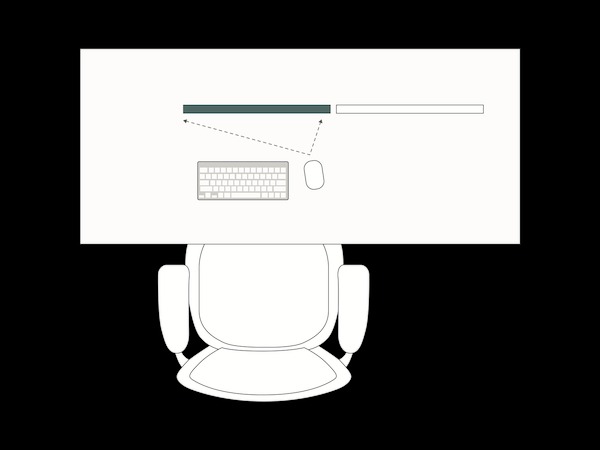
After arranging your monitors, place your mouse on the same side as your primary screen. This small detail prevents overextension of your elbow and helps avoid repetitive strain injuries that develop from reaching across your body throughout the workday.
4. Adjust Monitor Height and Alignment
Position your primary monitor directly in front of your body at eye level. Your secondary monitor should sit at the same height and parallel to the primary screen. This alignment minimizes the need to twist your neck or look downward, reducing both neck strain and eye fatigue.
The top of each monitor should be at or slightly below eye level, and both screens should be about an arm's length away from where you sit.
Choosing the Right Monitor Arm for Dual Screens
While you can achieve basic ergonomic positioning with monitor stands or stacked books, a quality dual monitor arm offers precise adjustability and makes it easy to maintain optimal positioning over time. Herman Miller offers several monitor arm solutions designed for ergonomic dual-screen setups:
Ollin Monitor Arm
The Ollin is a dynamic arm that securely supports monitors and laptops, including lighter devices. It offers a wide range of motion and tilt options, allowing you to move screens into comfortable positions whether you're sitting or standing. The flexibility makes it ideal for sit-stand desk users who transition between postures throughout the day.
Flo Monitor Arm
The Flo monitor arm series provides smooth, intuitive adjustments that help reduce eye strain. You can freely select vertical, horizontal, and tilt positions, and the arm supports fluid movement between sitting and standing postures. Its ease of adjustment encourages frequent repositioning, which is beneficial for comfort.
Daisyone Monitor Arm
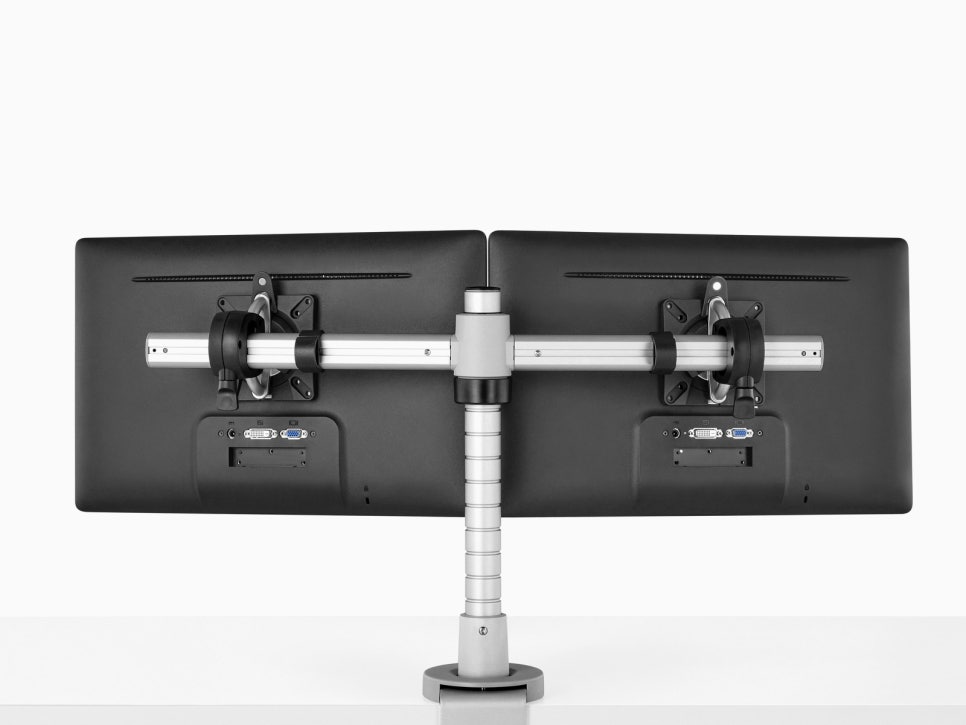
The Daisyone offers a space-saving design that can mount up to four screens at the same height on a single column. This configuration is optimized for environments where multiple people work in close quarters or for individual power users who need more than two displays.
Wishbone Dual Bar Monitor Arm
Wishbone is a post-and-beam system available in three reach lengths. This robust design is ideal for multi-screen applications such as trading floors, control rooms, or other professional environments requiring numerous displays in a precise, stable configuration.
The Bottom Line on Dual Monitor Ergonomics
Adding a second monitor can genuinely boost your productivity, but only if you take the time to set up your workspace ergonomically. By maintaining proper posture, designating a primary screen, positioning your mouse correctly, and ensuring both monitors are at eye level and parallel, you'll protect yourself from the neck pain, eye strain, and repetitive stress injuries that plague many dual-monitor users.
Investing in a quality monitor arm and an ergonomic chair creates a workspace that supports both comfort and performance. Your body—and your productivity—will thank you.
Furniblog may earn a commission from links in this post, at no extra cost to you. See our affiliate disclosure.