Steelcase Leap vs. Gesture: Which High-End Ergonomic Chair Is Right for You?
Two iconic chairs, two design philosophies—here's how to choose between them.
By the Furniblog Editorial Team·July 17, 2026·5 min read
Same Brand, Different Design Goals
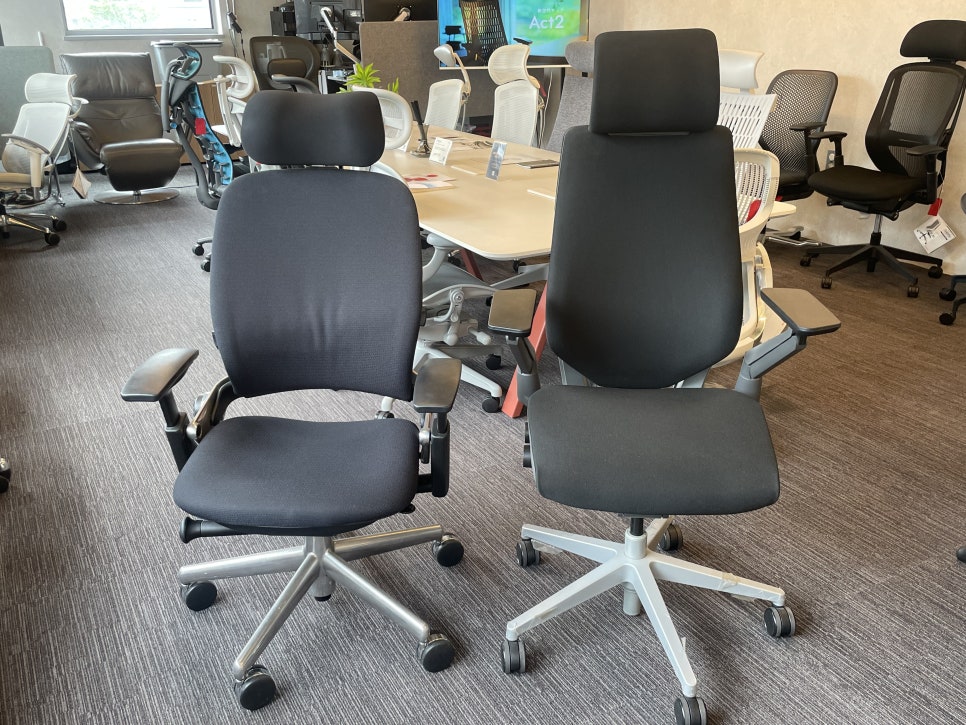
The Steelcase Leap V2 and Steelcase Gesture are two of the most well-known task chairs on the market. Both are premium offerings from Steelcase, but they were designed to solve fundamentally different ergonomic challenges—and understanding that difference is the key to choosing the right one.
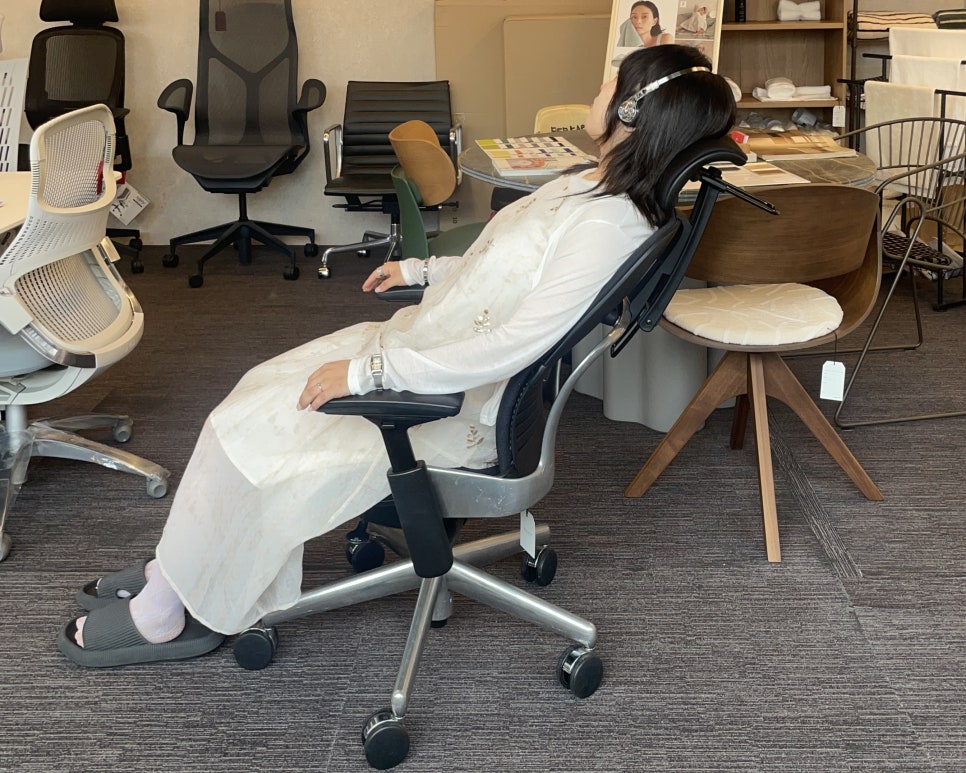
The Leap debuted in 1999 and was updated to the Leap V2 in 2006. It remains Steelcase's longest-running and best-selling chair. Its design centers on one core insight: when you recline, your spine doesn't move uniformly. The upper back arches backward, while the lower back flexes forward. The Leap's backrest was engineered to mirror this natural spinal movement.
The Gesture, by contrast, launched in 2013 after Steelcase conducted a global study of more than 2,000 workers. The research revealed that people using smartphones, tablets, and multiple devices adopt nine distinct postures that traditional office chairs weren't designed to support. The Gesture was built specifically to accommodate this new, device-driven way of working—with a particular emphasis on arm and upper-body movement.
In short: the Leap prioritizes spinal articulation during recline, while the Gesture prioritizes postural variety and arm support across a range of tasks.
BackRest and Recline: Two Takes on LiveBack Technology
Both chairs use Steelcase's LiveBack technology, but the implementation differs in meaningful ways.
Steelcase Leap V2
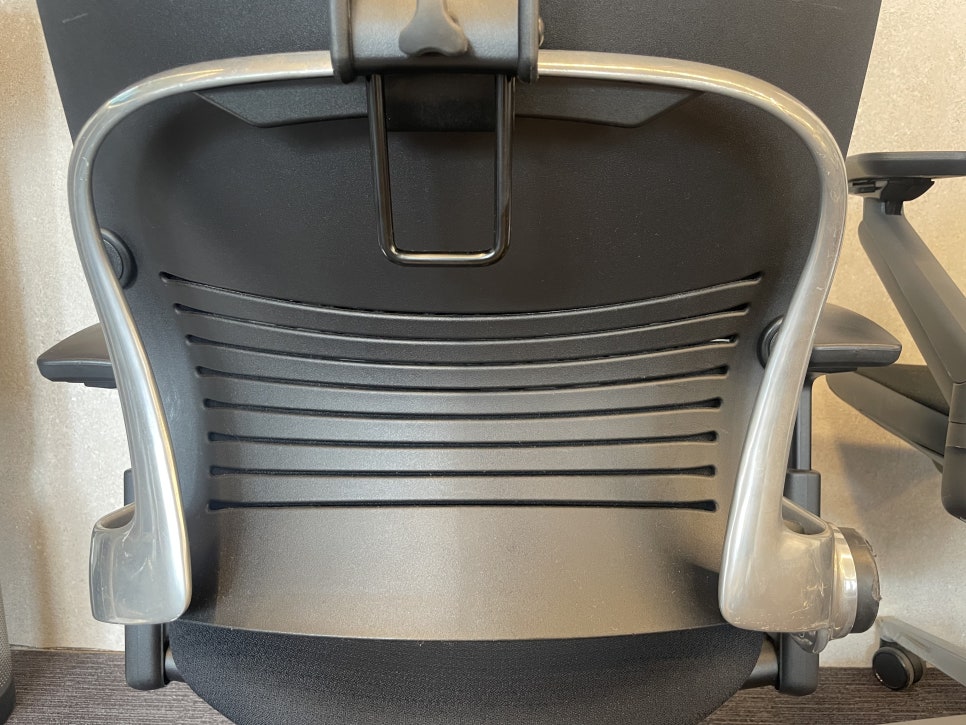
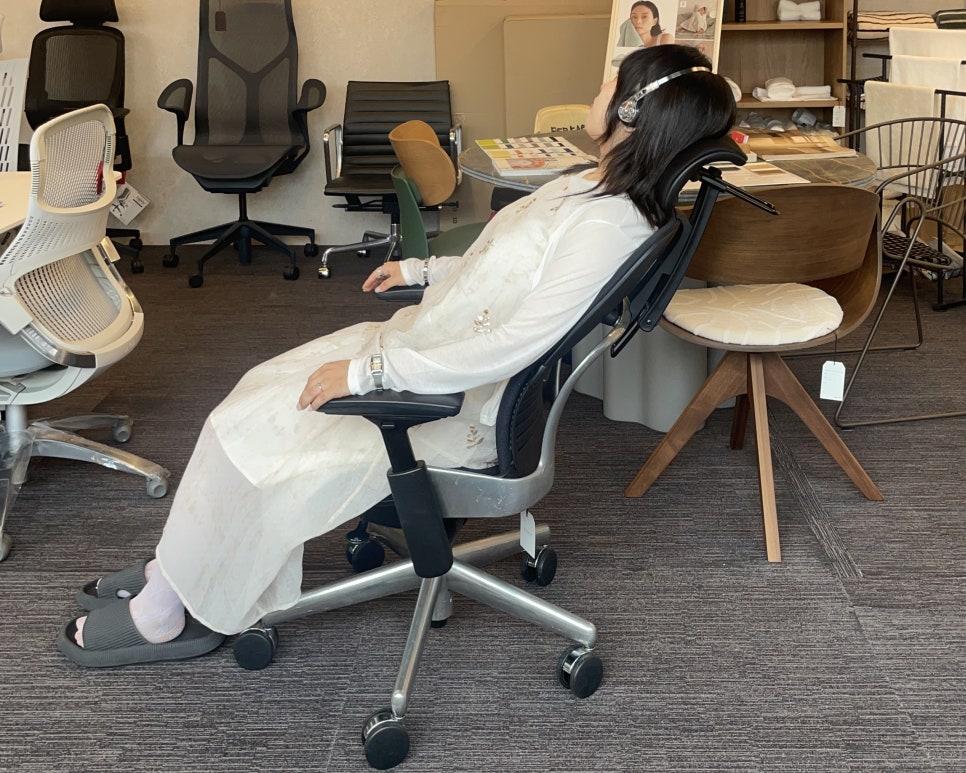
The Leap's backrest features independently moving upper and lower zones. As you recline, the upper section tilts back while the lower section flexes forward, tracking the natural curve of your spine.
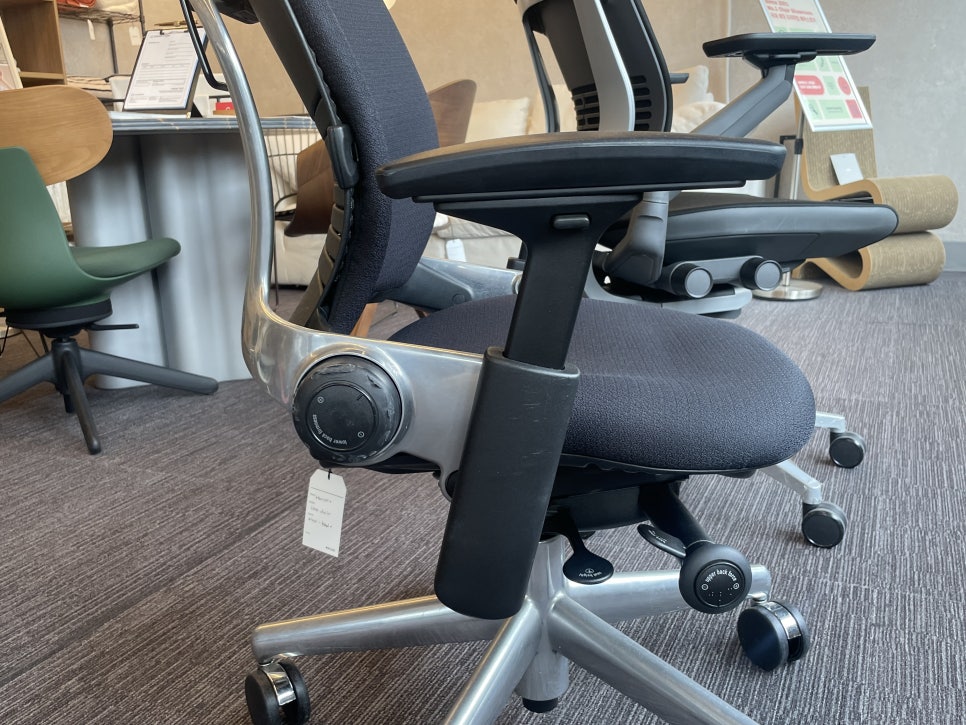
Its lumbar support system is highly manual and precise. You can adjust the height of the lumbar pad by pushing it up or down with a lever, and separately dial in the firmness using a knob. This dual-control system gives you granular control over lower-back support.
The Leap uses a Natural Glide System for recline: as you lean back, the seat slides forward slightly to maintain your distance from the keyboard and monitor. It offers five lockable recline positions.
Steelcase Gesture
The Gesture uses a 3D LiveBack system that adapts to spinal movement in multiple planes and supports a deeper recline angle than the Leap.
Its standout feature is the Core Equalizer, which automatically adjusts lumbar support based on your recline angle—no manual input required. However, the standard Gesture does not include height-adjustable lumbar support; that's available as an optional upgrade with a 4-inch adjustment range.
The Gesture provides full recline with three lockable tilt positions, plus an upright lock.
Bottom line: if you want direct, tactile control over lumbar positioning, the Leap's manual system is more precise. If you prefer automatic, real-time adjustments as you shift postures, the Gesture's Core Equalizer is the better fit.
Armrests: The Biggest Functional Difference
This is where the two chairs diverge most clearly.
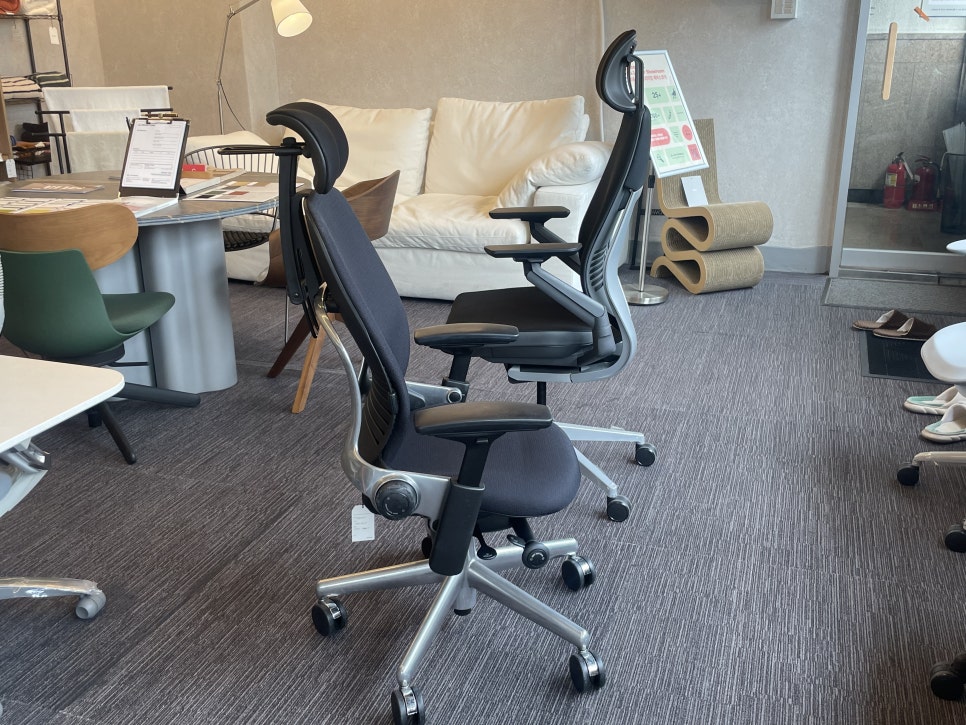
The Leap offers 4D-adjustable arms: height, width, depth, and pivot. But the pivot range is limited—roughly 20 to 30 degrees of inward rotation. It's functional, but restrained.
The Gesture's armrests, by contrast, are designed to move like a human arm joint. They rotate a full 360 degrees and offer one of the widest width-adjustment ranges available on any office chair. You can position them close to your body for typing, swing them wide for tablet work, or angle them inward for phone use. This flexibility is the Gesture's defining feature—and the reason it's often recommended for people who switch between devices frequently throughout the day.
One caveat: the Gesture's arms are manually repositioned. You grab the arm pad and rotate it to where you want it. They don't auto-adjust to your posture, so there's a slight learning curve.
Spec Comparison at a Glance
Feature | Steelcase Leap V2 | Steelcase Gesture |
|---|---|---|
Launch Year | 1999 (V2 in 2006) | 2013 |
Backrest Technology | LiveBack (upper/lower zones) | 3D LiveBack + Core Equalizer |
Lumbar Adjustment | Height + firmness dial (standard) | Auto-adjust (height upgrade optional) |
Armrests | 4D, limited pivot | 360° rotation, full range |
Recline Lock Positions | 5 positions | 3 positions + full recline |
Seat Depth Adjustment | ~3 inches | Yes (seat slider) |
Weight Capacity | 400 lbs (Leap Plus: 500 lbs) | 400 lbs |
Warranty | Lifetime frame / 12-year parts | Lifetime frame / 12-year parts |
Both chairs offer the same warranty and similar weight capacities. If you need extra support for a larger frame, the Leap Plus extends the capacity to 500 pounds.
Which Chair Should You Choose?
Choose the Steelcase Leap V2 if you:
Want precise, hands-on control over lumbar height and firmness
Prefer more granular recline lock positions
Are looking for a slightly lower entry price within Steelcase's premium range
Work primarily at a desk with a monitor and keyboard in a fixed position
Choose the Steelcase Gesture if you:
Switch frequently between keyboard, mouse, tablet, and smartphone throughout the day
Want armrests that adapt to a wide variety of arm positions and tasks
Prefer automatic lumbar adjustment that responds to your recline angle
Value postural flexibility and device-driven workflows over traditional desk ergonomics
Final Thoughts: Try Before You Buy
On paper, these two chairs may seem interchangeable. In practice, they feel quite different—because they were designed with different user behaviors in mind.
The Leap is a time-tested workhorse built around spinal support and recline mechanics. The Gesture is a modern response to how we actually work today: moving between screens, shifting postures, and using our arms in ways that didn't exist when the Leap was designed.
If possible, try both in person. Pay attention to how the lumbar feels when you adjust it manually versus automatically. Test the armrests while typing, using a mouse, and holding your phone. Notice how the recline tension and seat glide differ between the two.
Both are excellent chairs. The right one depends entirely on how you work.

Furniblog may earn a commission from links in this post, at no extra cost to you. See our affiliate disclosure.